Repair
WordPress Update Broke My Website — How to Fix It Step by Step
Calm recovery steps when a WordPress core, plugin, or theme update breaks your site — what to document, how to regain access, when to roll back, and when to call emergency repair.
Josh
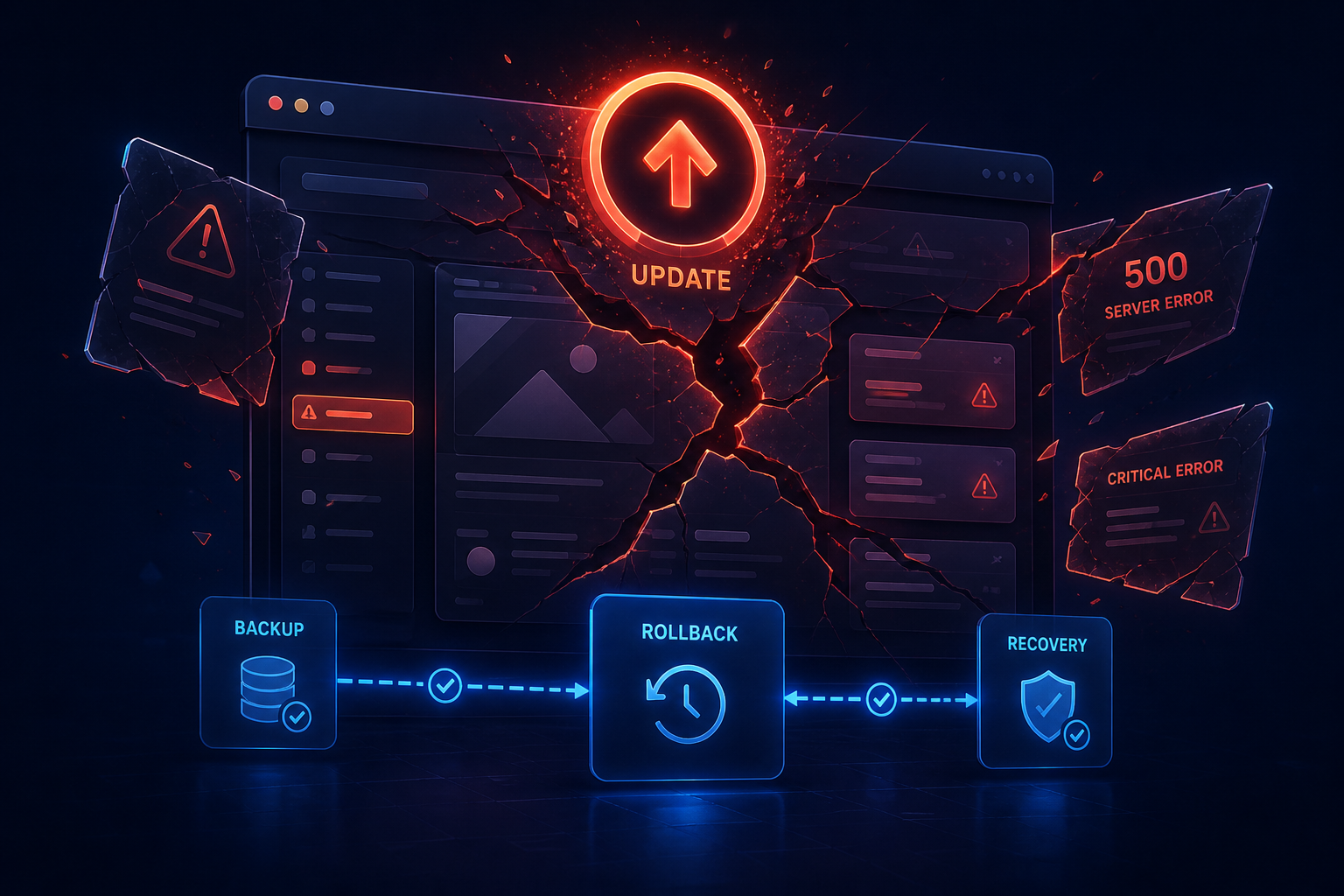
You updated WordPress — or WordPress updated itself — and the site is gone: white screen, critical error, 500 response, broken layout, or a checkout that never finishes. This is one of the most searched emergency queries for a reason. Owners need a recovery path, not a lecture about “always test on staging” after the fire starts.
Here is a practical sequence that matches how emergency website repair actually begins: stabilize evidence, regain access, isolate the change, restore or roll back, then verify.
What usually broke
Most post-update failures cluster into a few patterns:
- Fatal PHP errors after core, plugin, or host PHP changes
- Plugin/theme conflicts that only appear on certain templates or admin screens
- Memory exhaustion during or after background updates on constrained hosting
- Partial updates that left files half-written when the process timed out
- Builder or cache collisions (Elementor, Divi, Rocket, etc.) after dependency bumps
The trigger is often obvious (“Update All Plugins”). Sometimes it is invisible (auto-update overnight). Treat the timeline as evidence.
Step 1 — Document before you touch more things
Capture:
- Exact URLs that fail (homepage,
/wp-admin/, checkout, one post) - Full error text or HTTP code
- Time noticed (with time zone)
- What changed: core, plugins, theme, PHP version, host ticket, DNS/SSL edits
- Whether the public site, admin, or both are broken
Screenshots help. So does not making a broken site worse with random “fix” plugins.
Step 2 — Confirm access paths
Try, in order of least damage:
- Front end in a private window (rules out your cache/cookies)
/wp-admin/and/wp-login.php- Hosting panel / file manager / SFTP
- A known backup or host snapshot tool
If admin is dead but hosting works, you can often disable the last updated plugin via file rename. If hosting is unreachable, recovery belongs with the host and a technician — not more dashboard clicks.
Prefer a dedicated repair admin account later so activity stays attributable. Never paste production passwords into chat or intake forms; use a one-time secret link after you are in contact.
Step 3 — Isolate the last change (safely)
When you have file or panel access:
- Rename the most recently updated plugin folder (adds
.disabledor similar) and retest - If a theme update is the suspect, temporarily switch to a default theme only if you understand the front-end impact and have a rollback plan
- Clear opcode/page cache after each change so you are not staring at a cached failure
- Check
debug.logor host error logs for the first fatal line — that name is usually the culprit
Do one change at a time. Re-enable only after the site boots.
Step 4 — Restore or roll back when isolation stalls
If the site stays down, revenue is offline, or you lack confidence:
- Restore the newest known-good backup to a safe target when possible
- Verify the restore (backup vs restore verification) — login, forms, checkout, SSL
- Only then decide whether to retry updates one-by-one on staging
A restore that works beats a heroic three-hour debug while phones ring unanswered.
Step 5 — Verify the business paths
After the site loads again, check the paths that pay bills:
- Homepage and primary service pages
- Contact forms and notification email
- WooCommerce cart/checkout and payment if you sell online
- Admin login and ability to edit content
- SSL padlock and mixed-content warnings
Then pause automatic “update everything” until you know what failed and why.
How Care prevents the next break
DIY update night is how many small businesses meet emergency repair. A Website Care Plan exists so updates are supervised, backups are restore-tested, monitoring catches downtime, and someone can act during Eastern Time hours when a patch goes wrong.
You do not need Care to hire a rescue. Repair first if the site is down. Care is how you stop living on update roulette.
When to call emergency repair now
Stop DIY and request emergency repair if:
- The site or checkout is down and you cannot regain admin/hosting access
- You have no verified backup
- You see malware symptoms mixed with the update failure
- You are about to delete
wp-content“to start fresh”
Bring the URL, timeline, hosting login path, and any error text. That is enough to start a paid diagnostic and a written repair quote.
Frequently asked questions
Why did a WordPress update break my site? +
Should I keep clicking Update on more plugins to fix it? +
Is restoring a backup safer than debugging live? +
Can automatic updates break a site even if I did nothing? +
When should I stop DIY and hire repair? +
Related in Repair
-
Repair
How to avoid making a broken website worse
Common DIY moves that turn a recoverable failure into a longer outage — and safer habits while you wait for repair.
-
Repair
What information a website repair technician needs
The access, evidence, and timeline that let a repair technician diagnose faster — and what you can gather before intake.
-
Repair
Why a website can work while the admin panel is inaccessible
Your public site can look fine while wp-admin is broken — common causes and how to get admin access back without making it worse.